DevOps CI/CD Project
Automate CI/CD pipeline for web app
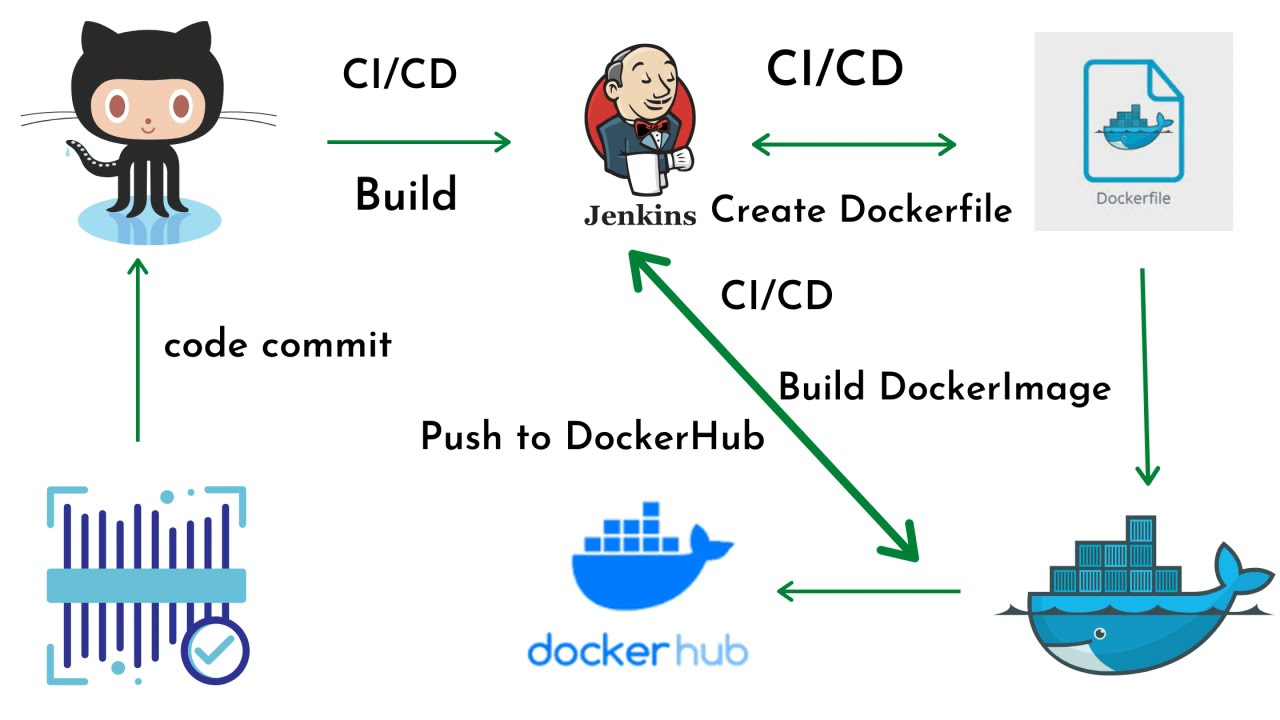
Project Overview :
The objective of this project is to deploy a web application on a Prod Server to make it easily accessible to customers. The following steps will be taken to achieve this goal:
Creation of a CI/CD pipeline using Jenkins to automate the deployment process.
Writing a Dockerfile to create an image of the web application.
Pushing the latest image to Docker Hub.
Deployment of the web application on the Prod Server by creating a Docker Swarm container.
Running the application on the Docker Swarm container on the Prod server.
Automatic triggering of builds whenever a developer commits changes and pushes them to GitHub.
By implementing this project, we will be able to provide a seamless and efficient deployment process for the web application, making it readily available to customers.
Required Tools :
To accomplish the project objectives, the following tools are required:
GitHub: For source code management and version control.
Docker: To build and manage the Docker image of the web application.
Jenkins: To automate the CI/CD pipeline and streamline the deployment process.
AWS: To host the web server where the Docker container will be deployed.
Docker Hub: To store and manage the Docker images. A Docker Hub account is necessary to push the latest image to the Docker Hub.
Docker Swarm: I am using Docker Swarm for container orchestration.
By using these tools, we can efficiently manage and deploy the web application on the web server, ensuring that it is readily available to customers.
Steps:
- Login AWS console and launch 3 servers (Jenkins server, Docker Server and Web server)

- Let's login on to the Jenkins server and install Jenkins but before installation of Jenkins, we have to install Java 11 because Jenkins is written in Java So we need it on the Jenkins server.
sudo apt-get update
sudo apt-get install openjdk-11-jdk
curl -fsSL https://pkg.jenkins.io/debian/jenkins.io-2023.key | sudo tee \
  /usr/share/keyrings/jenkins-keyring.asc > /dev/null
echo deb [signed-by=/usr/share/keyrings/jenkins-keyring.asc] \
  https://pkg.jenkins.io/debian binary/ | sudo tee \
  /etc/apt/sources.list.d/jenkins.list > /dev/null
sudo apt-get update
sudo apt-get install jenkins
sudo systemctl start jenkins
sudo systemctl status jenkins
Now copy your Jenkins server public IP and paste it into a web browser (ip:8080) make sure port 8080 is open.
Verify that Jenkins is running by accessing the Jenkins web interface at http://localhost:8080 on the server.

Now establish an ssh passwordless connection between the Jenkins server to the Docker server and the Docker server to the Web server.
Once the ssh connection is established between each server. Let's integrate our GitHub with Jenkins.
Go to the GitHub repository where developers push their code. copy that repo URL.
Go to the Jenkins dashboard and create a new job.

download ssh agent plugin on jenkins server to establish ssh connection .


let's check build is running or not .

Now writing pipeline for further stages .
push build image on docker hub

Once image has been pushed on Docker hub then delete image from docker server

sh 'ssh -o StrictHostKeyChecking=no root@172.31.37.170 docker rmi -f $JOB_NAME:v1.$BUILD_ID $JOB_NAME:v1.$BUILD_ID kundankumar344/$JOB_NAME:v1.$BUILD_ID $JOB_NAME:v1.$BUILD_ID kundankumar344/$JOB_NAME:latest '
Now start deployment on Docker Swarm let's configure Docker Swarm on Web Server.
First, install Docker on the Web server then initiate Docker Swarm.


Go through the below jenkins pipeline scritp .
pipeline {
    agent any

    stages {
        stage('Pull Source Code from SCM') {
            steps {
                git 'https://github.com/kundan344/CI-CD_Web_Application.git'
            }
        }
        stage('Copy code on Docker-server') {
            steps {
                sshagent(['jenkins-123']) {
                sh 'ssh -o StrictHostKeyChecking=no root@172.31.37.170'
                sh 'rsync -ivhr /var/lib/jenkins/workspace/Newlife_cicd_project/* root@172.31.37.170:'
}
            }
        }
        stage('Build Docker Image') {
            steps {
                sshagent(['jenkins-123']) {
                sh 'ssh -o StrictHostKeyChecking=no root@172.31.37.170'
                sh 'ssh -o StrictHostKeyChecking=no root@172.31.37.170 docker build -t $JOB_NAME:v1.$BUILD_ID .'
                sh 'ssh -o StrictHostKeyChecking=no root@172.31.37.170 docker image tag $JOB_NAME:v1.$BUILD_ID kundankumar344/$JOB_NAME:v1.$BUILD_ID'
                sh 'ssh -o StrictHostKeyChecking=no root@172.31.37.170 docker image tag $JOB_NAME:v1.$BUILD_ID kundankumar344/$JOB_NAME:latest'
}
            }
        }
        stage('Push Docker Image on Docker Hub') {
            steps {
                sshagent(['jenkins-123']) {
                sh 'ssh -o StrictHostKeyChecking=no root@172.31.37.170'
                withCredentials([string(credentialsId: 'docpass', variable: 'dockerpassword')]) {
                sh 'ssh -o StrictHostKeyChecking=no root@172.31.37.170 docker login -u kundankumar344 -p ${dockerpassword}'
                sh 'ssh -o StrictHostKeyChecking=no root@172.31.37.170 docker push kundankumar344/$JOB_NAME:v1.$BUILD_ID'
                sh 'ssh -o StrictHostKeyChecking=no root@172.31.37.170 docker push kundankumar344/$JOB_NAME:latest'
                sh 'ssh -o StrictHostKeyChecking=no root@172.31.37.170 docker rmi -f $JOB_NAME:v1.$BUILD_ID $JOB_NAME:v1.$BUILD_ID kundankumar344/$JOB_NAME:v1.$BUILD_ID $JOB_NAME:v1.$BUILD_ID kundankumar344/$JOB_NAME:latest  '

}


}
            }
        }
        stage('Deploye Code on Prod Server') {
            steps {
                sshagent(['web123']) {
                sh 'ssh -o StrictHostKeyChecking=no root@172.31.41.95'
                sh 'ssh -o StrictHostKeyChecking=no root@172.31.41.95 docker service rm prodapp'
                sh 'ssh -o StrictHostKeyChecking=no root@172.31.41.95 docker rmi -f kundankumar344/newlifecicd_project:latest'

                sh 'ssh -o StrictHostKeyChecking=no root@172.31.41.95 docker service create --name prodapp --replicas 4 -p 80:80 kundankumar344/newlifecicd_project:latest'

}
            }
        }

    }
}

I am also using Docker Swarm vizualizer for container monitoring .

If you want to launch Docker Swam vizualizer then use below command
docker service create \
  --name=viz \
  --publish=8080:8080/tcp \
  --constraint=node.role==manager \
  --mount=type=bind,src=/var/run/docker.sock,dst=/var/run/docker.sock \
  dockersamples/visualizer